
Getting started with AOA on MPGE
To access MPGE and to play AOA, you must be registered on the site.
For instructions on that, see the Registration page.
Logging on and issuing a challenge are the same as how this is done for FBS
Once you have issued the challenge, your opponent has the ability to accept or reject that challenge.
If the challenge is accepted, the person being challenged gets to set the parameters for the game.
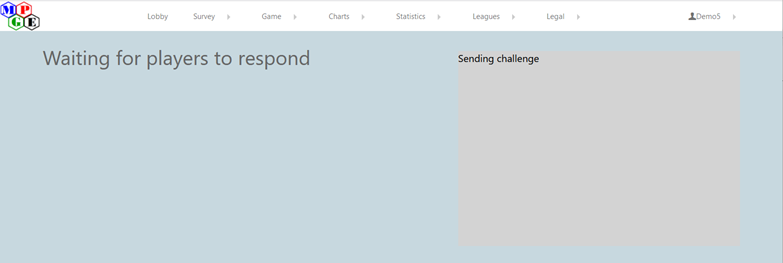
The person making the challenge will see this:
The person being challenged will see this settings page:
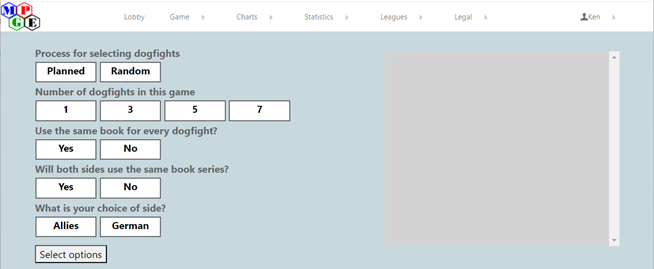 What do each of these settings mean?
- Process for selecting dogfights
- Planned: The person being challenged selects which aircraft are being used.
- Random: The aircraft are selected at random
- Number of dogfights in the this game
- A game can consist of 1, 3, 5, or 7 dogfights
A dogfight continues until:
- One or both planes are shot down
- One or both planes choose to escape from a “Lost” position
- The dogfight has lasted for 30 turns
- A game can consist of 1, 3, 5, or 7 dogfights
A dogfight continues until:
- Use the same book for every dogfight?
- If this option is selected, all of the dogfights in the game will use the same book (Rotary, Powerhouse, or Flying Machine)
- If this option is not selected, then different books can be selected for each dogfight
- Will both sides use the same book series?
- If this option is selected, both players will use the same type of aircraft (Rotary vs Rotary, Powerhouse vs Powerhouse, Flying Machine vs Flying Machine)
- If this option is not selected, you can have different planes fighting each other (Rotary vs Powerhouse, Rotary vs Flying Machine, Powerhouse vs Flying Machine)
- What is your choice of side?
- The challenged player selects which side they’re playing. The challenger will get the other side.
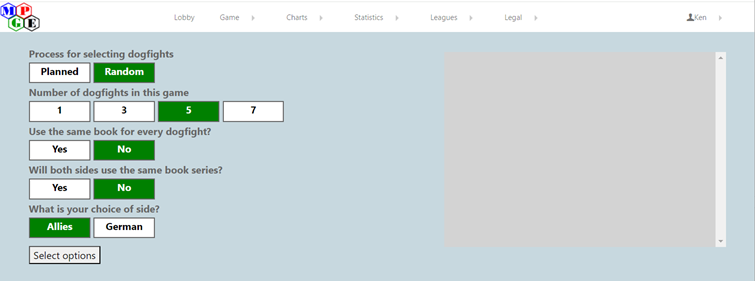
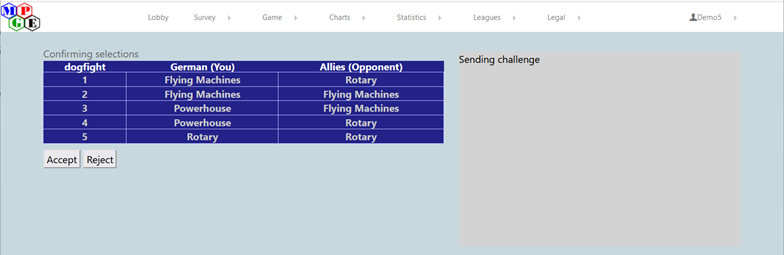
If the Process for selecting dogfights is Random, then the random selections are presented to the challenger to be accepted or rejected.
Here, five random dogfights will be played, with no limits on the books or matchups between sides:
Here is one sample set of dogfights that could be selected:
If the dogfights are planned, then the challenged player will get a screen allowing them to make choices based upon the planned options selected.
If neither of the “Use the same book for every dogfight” or “Will both sides use the same book series” options are selected, the screen will look like this:
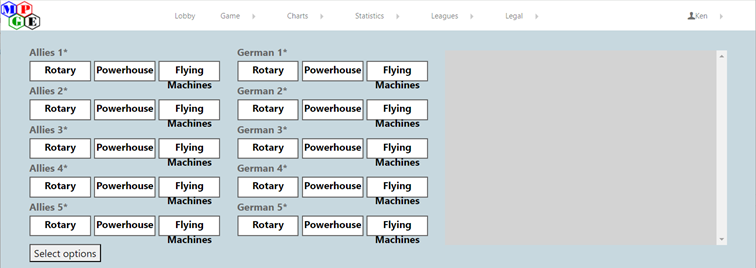
If only the “Use the same book for every dogfight” is selected, you will see this page:
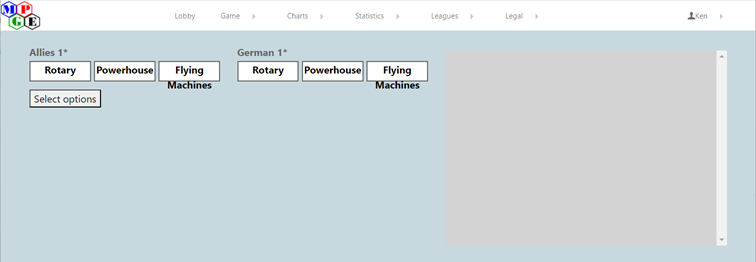 All five dogfights will have the same matchup between planes.
If only the “Will both sides use the same book series” is selected, this page will be displayed:
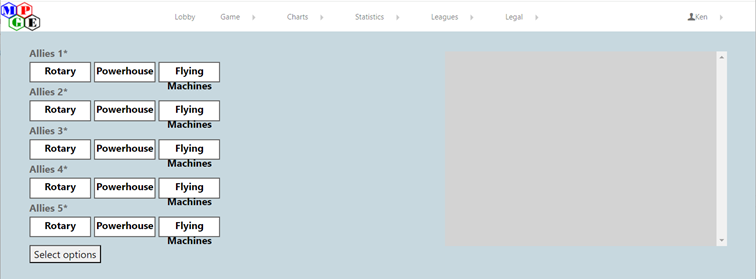 The Germans and the Allies will both use the same planes for each dogfight.
And if both options are selected, this is your only choice:
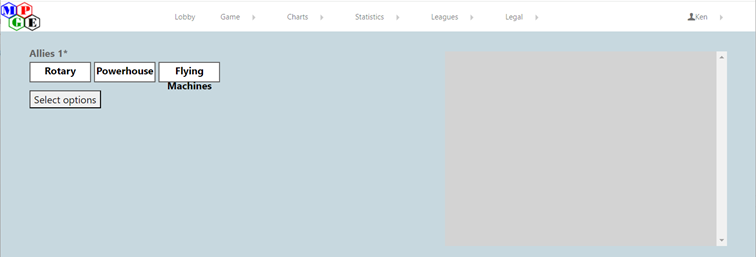 The Germans and the Allies will both use the same planes for all dogfights.
Once the selections have been made, the challenger will get a confirmation page with the ability to accept or reject the chosen game settings.
For example, if the challenger has made these selections:
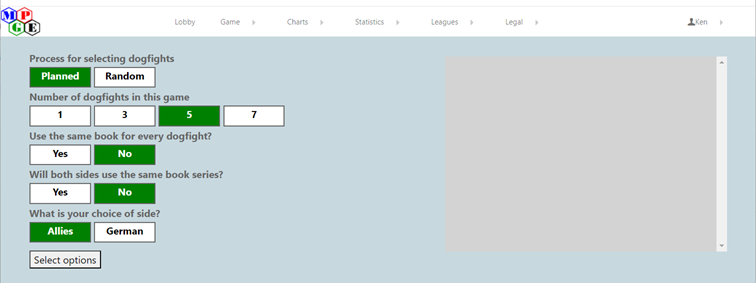
And then makes these choices:
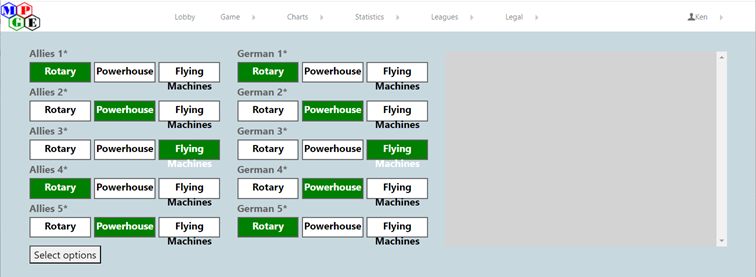
Then the challenger would see this confirmation screen:
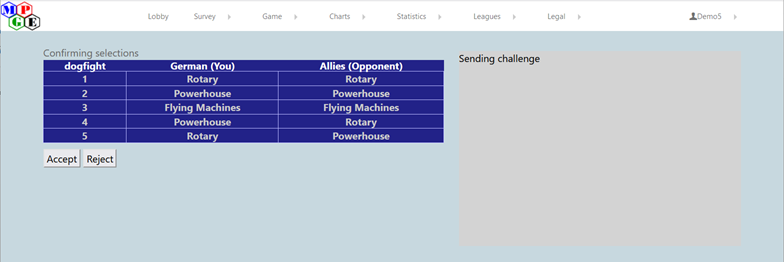
If the game selections are accepted, then the first dogfight will begin. (If the selections are rejected, the challenged player gets the initial selection screen again to restart the game-start process.)
When the game starts, you will see the “play” page:
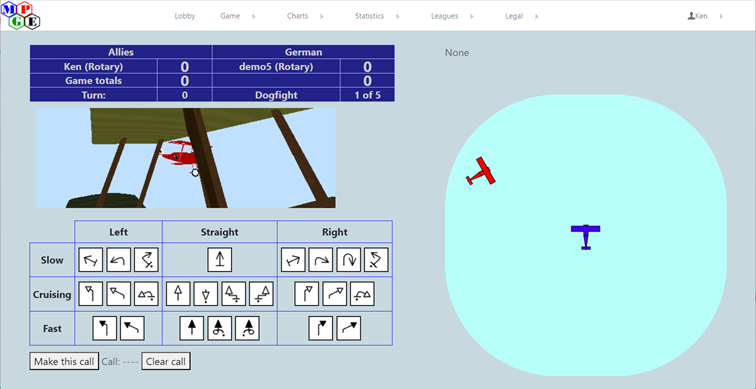
The screen is divided into 5 parts
- The scoreboard is on the top left
- The Allies player is on the left, the German player is on the right
- The line under the header shows the player’s name and the plane they are flying.
- After the player’s name and plane there is the amount of damage done to the enemy plane
- Note: This game works on a 12-point system and not the 6-point system in the books.
- Hits are worth 1, 2, or 4 points, depending on range. This is different from the 1/2, 1, 2 point system used by the books.
- Under the current hit totals is the current game totals
- You score 2 points for shooting down the enemy plane.
- You score 1 point if the enemy chooses to “escape” the dogfight and you choose to “search”
- No points are scored if you both choose to “escape”
- No points are scored if the game ends due to the 30-turn time limit
- The bottom line shows the current turn number and the current dogfight
- Below the scoreboard is the cockpit view. It shows the enemy plane’s position relative to yours.
- In this example, you are looking out the left side of the cockpit toward the front. (You might describe this as the enemy plane being in your “10 o’clock” position.)
- Below the cockpit view are your maneuver selections. These correspond to the maneuvers available in the books.
- This game enforces the final-round movement restrictions used in the WBC AOA tournament. When both planes are in the same location, maneuvers that leave you in that same location are not available.
- When you choose a maneuver, you click on the maneuver button and then click “Make this call”. It will then show the maneuver selected next to the word “Call”, between these two buttons. If you click “Clear call” before your opponent has made a selection, it clears your current choice, allowing you to select a different maneuver.
- On the top right of this page, next to the scoreboard is the message section. Text messages that the game needs to present to you will be shown here.
- Underneath the message section is the overhead view. This view shows you the relative position of the enemy plane to you.
- Your plane is always shown in the center, facing up.
- This view will also show indicators during the game
- A plane with a tailing advantage will show a letter “T”
- A plane that has just been hit will be shown with a red circle around it.
- Cumulative damage will be shown as small white circles on the plane’s wing
When you are tailing an enemy plane, play is no longer simultaneous. The plane being tailed must make their selection first. The tailing plane will have a “Please wait” screen.
After the plane being tailed has selected a maneuver, they have the “Please wait” screen while the tailing plane receives an indicator of the direction of the maneuver selected by the plane being tailed. In this example, the tailed plane has selected a “Straight” maneuver.
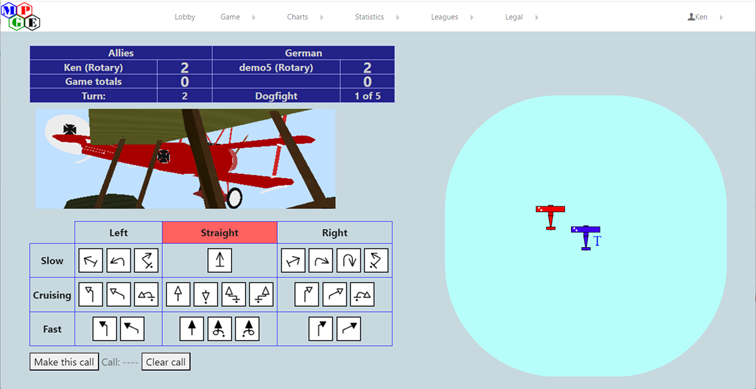 In this picture, you can also see the letter “T” showing up next to the blue plane, showing that the Allies plane is tailing the German plane. Also, you may be able to see in this picture the two small white circles on the wings of both planes, showing that each plane has taken 2 points of damage so far.
When you are actually being shot at, the background of the cockpit view will turn red, showing that you have been fired at. Additionally, a red circle will be shown around your plane on the overhead view:
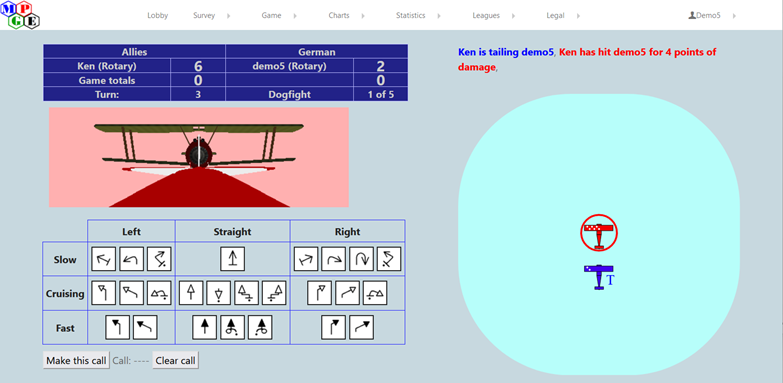 In this example you can see that the Allies plane is directly behind the German plane and has done 4 points of damage to it.
You can see:
- The score is now 6 - 2 in favor of the Allies
- The background of the cockpit view is now red
- The German plane has a red circle around it in the overhead view
- The Allies plane has the letter “T” next to it showing that it’s still tailing the German plane
The game does handle the modified “hit table” for the Allies DH2. Here’s an example of a 1-point hit by the DH-2 on a German Eindecker E-3:

When both planes are in the same location, the enemy plane no longer appears in the cockpit view, and your view from the plane is indicating the direction that the enemy plane is headed.
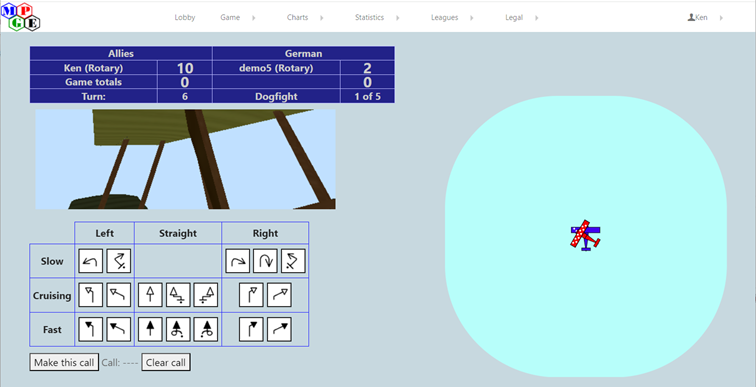 You can see:
- Both planes in the overhead view are in the same location.
- The German plane is facing off toward the left
- You don’t see the enemy plane in the cockpit view.
- There are six maneuvers that you don’t have available
When both planes are facing forward, the enemy plane in the overhead view completely obscures your plane.
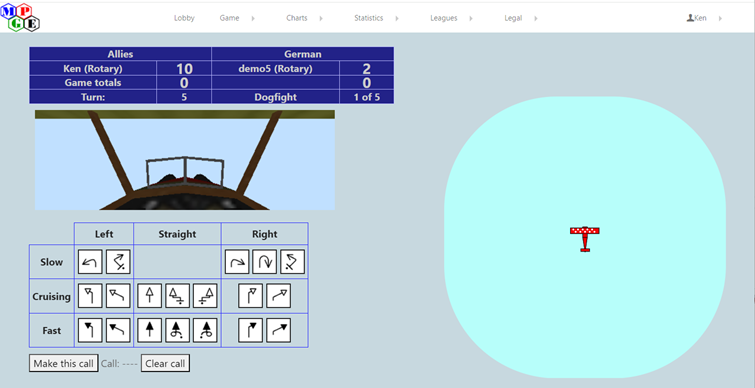
When the planes have flown too far away from each other, you will get this search screen:
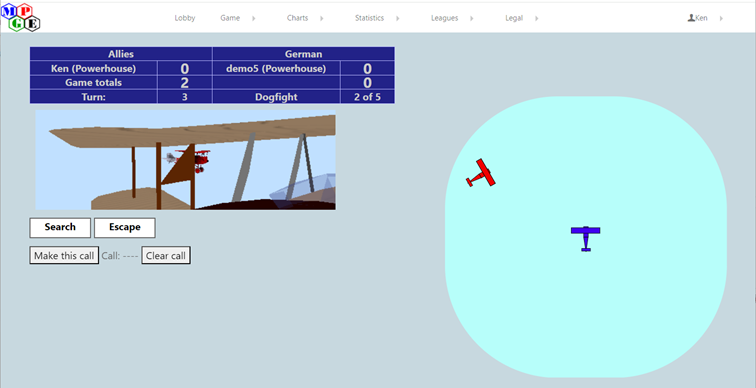
- If both planes select “Search”, the dogfight continues from the starting position.
- If either plane selects “Escape”, the dogfight ends.
- If one plane selects “Search” and the other plane selects “Escape”, the plane selecting “Search” scores 1 game point.
When a dogfight ends, if there are more dogfights to be fought, both players are presented with a “Continue” or “Concede” page:
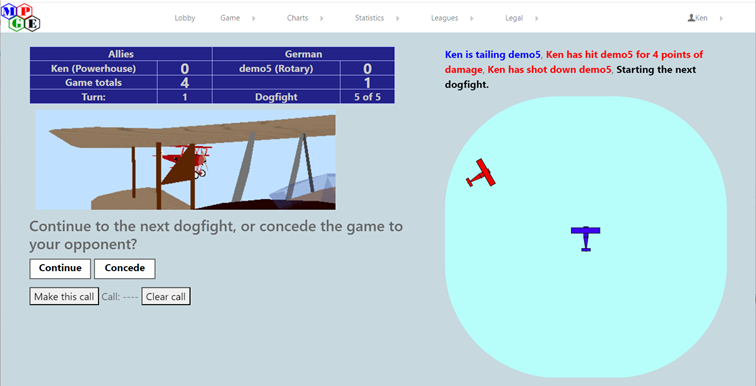
- If both players select “Continue”, play proceeds to the next dogfight.
- If one player selects “Continue” and the other selects “Concede”, the person selecting “Continue” has won the game, regardless of any point totals.
- If both players select “Concede”, both players are considered to have lost, regardless of any point totals.
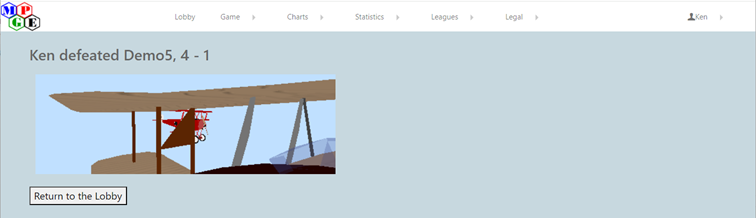
At the end of the game (either all dogfights have finished or a player has conceded), a final results page is shown along with providing a button to return to the lobby.
If you need to suspend a game, or if you lose your connection for any reason, you can use the “Reconnect to a game” menu option. It will bring up a page showing games in progress. Select the game you wish to continue and you will be reconnected to that game. (This works the same as with FBS)